End-to-end demo guide for Ghana schools

GOADEdu Demo Manual

Use this guide to test the seeded GOADEdu school from owner setup through staff operations, student records, fees, attendance, exams, homework, communication, parent views, and reports.

Marked screenshots

Where to go first after login.

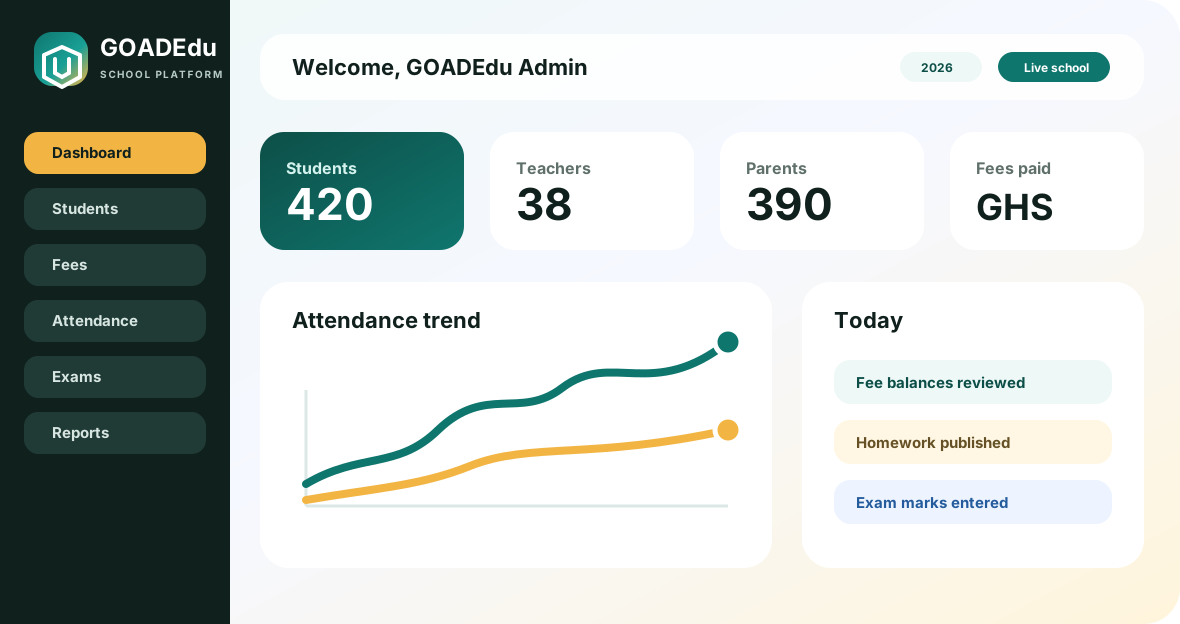
Use the left menu for modules, the dashboard cards for quick status, and the top bar for user/session actions. The pins below show the first places to inspect during a demo.

Marked GOADEdu dashboard preview 1 2 3
Dashboard Student Info Fees Homework Exams Communicate Reports
1Select the role menu
2Open the module screen
3Create or review records
4Confirm reports and portals

Role guide

What each demo user should test.

Seeded accounts are intentionally role-specific, so each login should reveal a different school workflow and permission surface.

S

School Admin

School setup, students, staff, academics, fees, reports, communication, and settings.

Start here: Start from the dashboard, review students and staff, then check fees and reports.

Login: comfort.kwarteng4@staff.goadedu.com / 123456

T

Teacher

Lesson plans, homework, attendance, marks, notices, and class work.

Start here: Review assigned classes, mark attendance, add homework, then enter exam marks.

Login: naa.acheampong1@staff.goadedu.com / 123456

A

Accountant

Fees, invoices, payments, income, expenses, and finance reports.

Start here: Open fees collection, review balances, post a payment, then check reports.

Login: vida.asante7@staff.goadedu.com / 123456

R

Receptionist

Admission enquiries, visitors, postal records, calls, and front office logs.

Start here: Open admin office, add an enquiry, record a visitor, then check follow-ups.

Login: samuel.addo10@staff.goadedu.com / 123456

L

Librarian

Book categories, book lists, library members, and issue/return tracking.

Start here: Open library, review books, issue a book to a student, then check returns.

Login: prince.yeboah13@staff.goadedu.com / 123456

S

Student

Student dashboard, homework, attendance, fees, routines, exams, and notices.

Start here: Check homework, class routine, notices, fees, and exam results.

Login: comfort.quartey1@student.goadedu.com / 123456

P

Parent

Child profile, fee status, attendance, homework, results, and school notices.

Start here: Select a child, review fees and attendance, then check homework and notices.

Login: guardian_1@goadedu.com / 123456

End-to-end flow

A practical demo path from setup to parent portal.

Follow this order when presenting the platform or testing modules after a fresh seed.

1

School setup

Check academic year, classes, sections, subjects, staff roles, fee groups, and general school settings.

2

Daily operations

Use teacher and receptionist roles to test attendance, homework, admission queries, visitors, notices, and messages.

3

Finance and academics

Use accountant and teacher roles to test fee balances, payments, invoices, exam marks, grades, and reports.

4

Student and parent view

Confirm students and parents see only their allowed records: homework, attendance, fees, notices, and results.

5

Library and inventory

Review books, categories, suppliers, item stores, item lists, and issue/return flows.

6

Reports and polish

Open major reports, verify school branding, inspect uploads, and test mobile layout before showing schools.

Smoke checklist

Confirm the demo is ready.

Run through these checks after deployment and seeding.

  1. Open demo.goadedu.com and confirm this manual loads.
  2. Login as Teacher and confirm the dashboard opens.
  3. Open attendance, homework, lesson plan, and marks screens.
  4. Login as Accountant and confirm fees/payments show records.
  5. Login as Student and confirm student-only pages load.
  6. Login as Parent and confirm child-specific pages load.
  7. Check mobile layout on landing, demo manual, and login.
  8. Confirm uploaded files, logos, and dashboard images render.